

Hello, if you like our video downloader, please leave feedback in the Chrome Web Store.
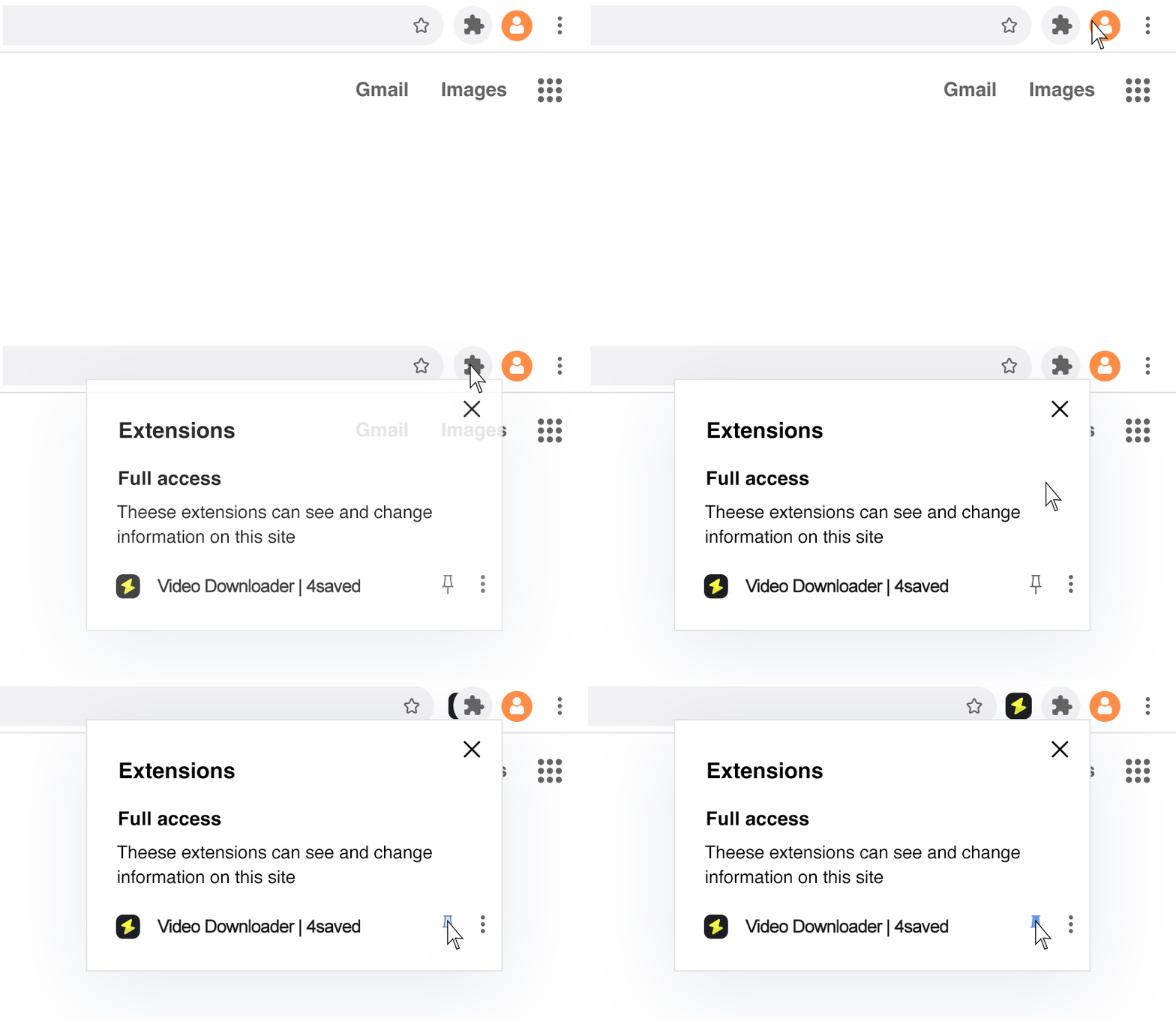
Leave FeedbackNot seeing 4saved icon at the top right hand side of Chrome after installing the extension?
Chrome has started hiding extensions in the toolbar. You will notice Chrome extension jigsaw icon at the top right of your chrome browser.
When you click this icon, a menu will show a list of all the installed extensions. You need to click the Chrome extension pin icon next to 4saved.
Once done, you will see the "Flash" icon.
How to Download Video with 4saved
Browser extension for downloading web videos (HLS, m3u8, mp4).

Open the page with a video
After installing the extension in the browser, open the video webpage. The extension icon in the upper right corner of the browser will display a numerical subscript, which means that the video URL in the webpage is captured. If there are no numbers, play the video or refresh the page.
Select the download item
If the video URL is captured, it will be displayed in the list. Click the download icon, a new tab will be created, and then the download will begin. Sometimes there may be multiple URLs displayed in the list, you should judge by the file format and file size.


Download begin
After the download task is created, you can pause, cancel, and save the cached part of the video. If you don’t need a maximum clear video, you can choose other resolutions by switching to select form. Please note that during the video download process, do not close the tab showing the task.
 English
 Español
 Français
 한국어
한국어 中文
中文 Português
 日本語
日本語